|
|
Leverage: Interactive Fuzzy Match Dialog |
|
|
Leverage: Interactive Fuzzy Match Dialog |
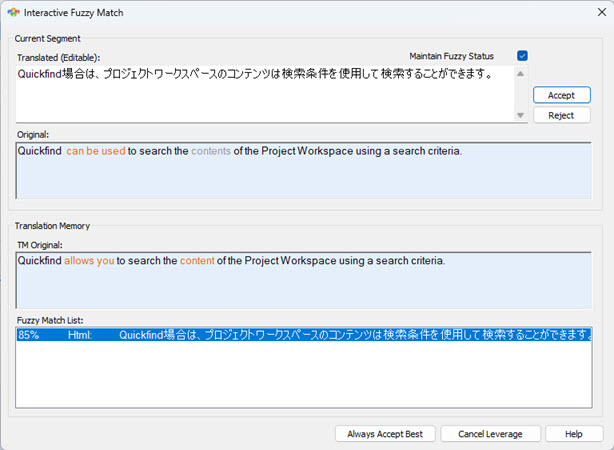
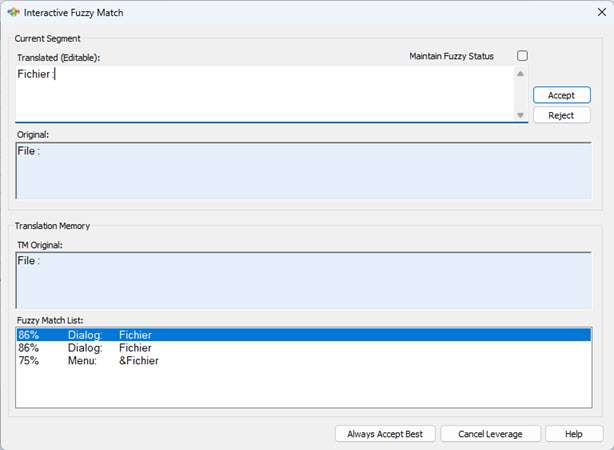
The Interactive Leverage Fuzzy Match dialog is used by professional translators to select appropriate translations from a Translation Memory. This dialog will be displayed when Fuzzy Match is selected and one or more matches have been located in a Translation memory. The difference between the segment in the TM and the current segment are highlighted in color. To learn more about Fuzzy Match Colors, please refer to Fuzzy Match Colors.
|
|
Use [CTRL] + [ALT] plus [UP] and [Down] keys to move from one fuzzy match to the next. |
|
|
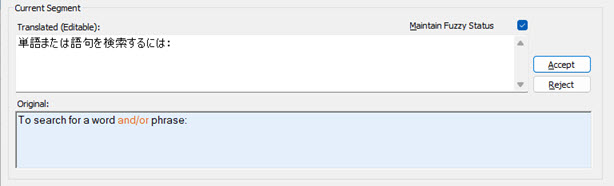
Translated This window displays the target translation of the current segment that is being Fuzzy Matched. This is an editable window, its content can be modified.
By default, any Fuzzy match applied (Accepted) will have the Fuzzy Match
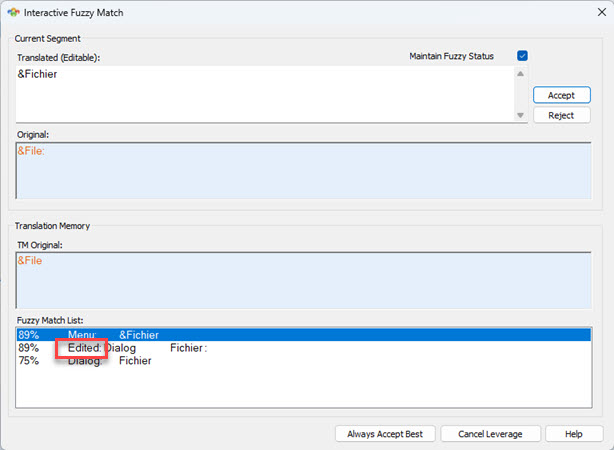
If editing the segment, Maintain Fuzzy Status checkbox is automatically unchecked to reflect a translator has manually entered the translation. The segment will have the Leveraged
|
|
|
Original This window displays the source text of the current segment that is being Fuzzy Matched. This window is colour coded and will display changed, added or moved text. |
Click the Accept button to apply the Current Fuzzy match or Reject if you wish to ignore the match and move to the next segment.
|
|
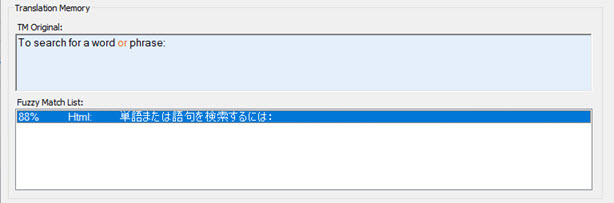
Fuzzy Match This window displays the currently highlighted fuzzy match from a Translation Memory. This window is colour coded to highlight the differences between the Original source segment. |
|
|
Fuzzy Match List This window displays a list of fuzzy matched segments from a Translation Memory. It displays the calculated fuzzy match as a percentage value along with the type of object matched in the Translation memory.
Each entry in the fuzzy match list has the associated resource type it originates from. In the example above, the 88% translation match is from an HTML file. |
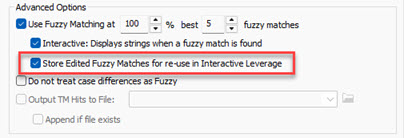



 translation status.
 translation status.