|
|
Configuring a Glossary |
|
|
Configuring a Glossary |
Add a glossary file to the glossary list in Alchemy CATALYST to view suggested Term translations from it. Using glossaries helps improve the consistency and precision of translations, especially if working on several applications that share common terminology. Glossaries, therefore, are a vital part of the localization process.
Alchemy CATALYST can have an unlimited number of glossary files open at one time. All industry standard formats are supported, such as TBX, TMX, TXT, GlobalLink Term Manager.
Learn to use your glossaries in CATALYST.
Glossary files can be added directly in the Terms window clicking the Glossaries button or click on Attach Glossary in the POWER TRANSLATE ribbon.
Alternatively, go to HOME > Settings > Power Translate > Glossary
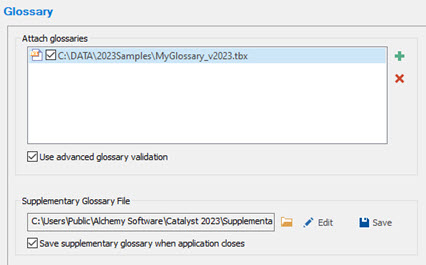
Only glossary files that are active will be used for terminology lookups. Click on the  checkbox adjacent to each glossary to make it active and available for terminology lookups.
|
|
Attach glossaries: Click Or click on
Click on the check box to activate the desired glossaries.
|
|
|
Use advanced glossary validation: With this option enabled, glossary matches and the glossary validation checks will operate flexibly. CATALYST will match glossary entries intelligently, looking past differences in articles, prepositions or plurality. When the option is disabled, glossary matches and validation checks from the attached glossaries will be highlighted for strict matches only (whole words). This advanced option provides the translator with glossary terms without enforcing strict matching, and eliminates the need to have multiple glossary iterations of the same word(s) to cover for differences such as plural or articles. For example, consider the Term “tree” translated as “arbre” in a French glossary file. With the option disabled, if “l’arbre” or the plural “arbres” is used in the translation, the Validation Expert would report a glossary match was not used because CATALYST looks for whole words to match exactly the entries in the glossary.
|
Glossary matches will appear with a fuchsia colored overline in the Translator Toolbar and the translations in the Terms window, with the number of matches in [ ] brackets .

In tbx files, Catalyst reads terms marked as Forbidden when added in a <termNote> element with termstatus as type attribute. The value can be either "Blocklisted" or "Blacklisted". Example:
|
<termEntry id="c1"> <langSet xml:lang="en-US"> <tig> <term>Dialog Toolbar</term> <termNote type="termStatus">Approved</termNote> </tig> </langSet> <langSet xml:lang="fr-FR"> <tig> <term>barre d'outils de boîte</term> <termNote type="termStatus">Blocklisted</termNote> </tig> </langSet> </termEntry> |
Catalyst can also display forbidden status in the Description column, when found in the <Describ> element. To display the DESCRIPTION column, right click the Terms window column header and select "Columns > Description".
Here is an example of the syntax in the <describ> element as seen in the screenshot above.
|
<termEntry id="c4"> <descrip type="Forbidden">volet Espace de travail</descrip> <langSet xml:lang="en-US"> <tig> <term>Project Workspace</term> </tig> </langSet> <langSet xml:lang="fr-FR"> <tig> <term>volet Espace travail</term> </tig> </langSet> </termEntry> |
The Validation Expert check "Glossary consistency check" will report on cases where the translation for the Term match has not been used, or when a forbidden translated term has been used.
For more information on Supplementary Glossary files and how to work with them, please refer to Supplementary Glossary Files.


 to add a new glossary to the glossary list. Then click
  to select a .txt, .tbx or .tmx glossary file.
 to link to a Global Link